

Interiors / Electrical
A better home office: comfort, networking and backup power
Fit the workstation to the person, connect the equipment reliably and decide what needs to survive a power interruption.
Our articles are a starting point, not a professional assessment of your home.
DraftA work in progress, prepared by the HouseIQ.pro team.Editorial and professional review are not yet complete.
The Big Picture
A dependable office combines a comfortable working position, a tested network path and a realistic power-backup plan. Improving one part cannot compensate for a weak link elsewhere.
Start with the problem you experience
Before buying equipment, keep a short log of a normal workday. Note discomfort, glare, video-call dropouts, noisy periods and interruptions. Write down where the computer, router and electrical outlets are located. Problems that happen only during the household's busiest streaming period suggest a different investigation from a screen that disappears whenever power flickers.
Separate the desired result from the product. Fewer interrupted meetings is a goal; a new mesh kit is one possible response. Comfortable document work is a goal; a standing desk is not automatically the answer. Try low-cost layout adjustments and repeat the same task before and after. A clear problem description also helps an electrician, network installer or workplace specialist recommend a proportionate solution rather than a full replacement package.
Adjust the workstation around your body
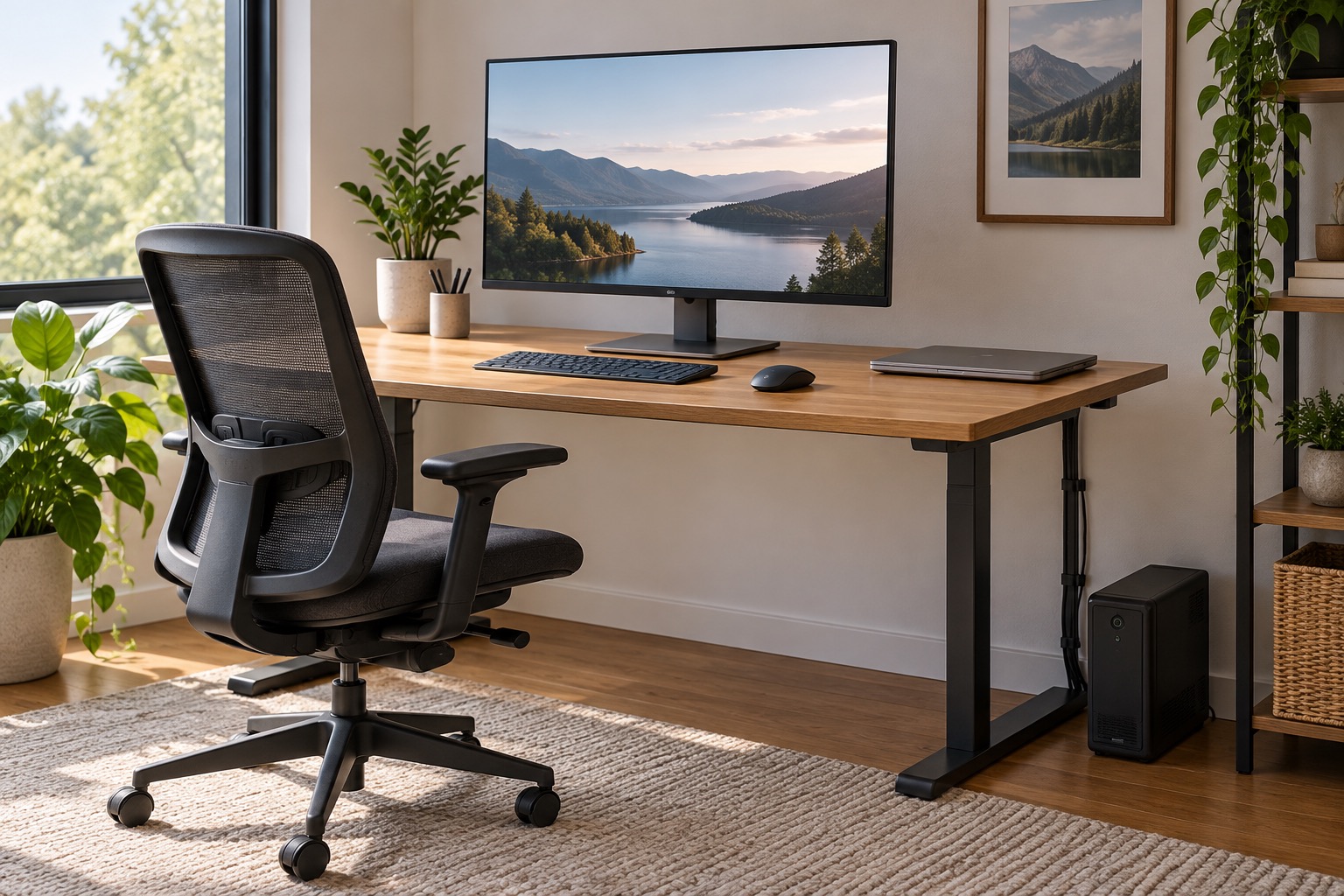
OSHA describes neutral working positions with supported feet and back, relaxed shoulders and comfortably aligned wrists and forearms. Start with a chair and desk arrangement that lets you work without reaching or hunching. If raising the chair leaves feet unsupported, a suitable footrest may help. The keyboard and pointing device should be usable without stretching forward repeatedly.
A laptop couples the screen to the keyboard, so raising one also raises the other. An external keyboard and mouse can make screen placement more flexible. Try the setup during actual typing and reading, not only while sitting still for a photograph. Change position and take movement breaks during the day. Persistent pain or individual accessibility needs warrant appropriate professional advice; furniture adjustment is not a diagnosis or a promise to resolve a medical problem.
Put the screen where you can read without leaning
OSHA recommends positioning a primary monitor directly ahead, with the top at or slightly below eye level and a comfortable viewing distance. Increase text size if you are leaning forward to read. People using some corrective lenses may need a lower screen position. An adjustable stand makes that experiment easier than stacking equipment on an unstable pile.
Place the screen in relation to windows as well as the chair. Side daylight is often easier to manage than a bright window directly behind or reflected in the display. Test the room at the hour you actually work, including late-afternoon sun. Keep frequently used documents near the main view so you are not repeatedly twisting your neck. A second monitor should support the task rather than force constant turning toward the screen used most.
Distinguish the internet service from the network inside
The internet service connects the home to the provider. The local network connects your computer to the router and other devices. Wi-Fi uses radio; Ethernet uses a cable. A fast subscription cannot repair a weak local radio connection, and a new cable cannot fix an outage upstream. Treat the route as several links rather than one advertised speed.
Compare performance at the desk with a permitted wired connection near the router, using the same device and task where practical. Note stability and upload performance as well as download speed. Video meetings and large file uploads can expose problems that casual web browsing hides. Employer VPNs and remote services introduce additional variables. Record what changed during a test so the next troubleshooting step is based on evidence rather than repeatedly replacing equipment.
Choose Ethernet and mesh for the jobs they do well
A dedicated Ethernet drop can provide a predictable connection for a fixed desk without depending on the radio path through walls. Mesh Wi-Fi can improve coverage and mobility, but each node still needs a good connection back toward the network. Placing a node in the existing dead spot does not necessarily give it a useful upstream signal. A mixed system can serve a wired desk and wireless mobile devices.
For new Cat6 or Cat6a wiring, ask the installer which performance target, run length, connectors and test results the complete link will support. The category printed on cable alone does not describe the computer port, switch or internet service. Request labelled outlets and a cable test report. Have concealed routes, firestopping and separation from power wiring handled appropriately; renters should obtain permission before permanent modifications.
The connection between mesh nodes is called backhaul. TP-Link notes that a wired Ethernet backhaul can improve stability over its wireless alternative. This is a useful hybrid option when cable already reaches a room: the same home can use cable between access points while laptops and phones remain wireless.
A UPS buys time for a defined set of equipment
An uninterruptible power supply combines a battery with power electronics to support connected equipment during an interruption. A small office UPS is often intended to bridge a brief outage or allow orderly saving and shutdown. It is not whole-house backup. Surge protection and battery-backed operation are also different functions; some outlets on a UPS may provide only the former.
List the equipment needed for the task. A laptop may continue on its own battery while the router, modem or fibre terminal loses power. Keeping those local devices running still does not guarantee the provider's network remains available. Decide whether the goal is finishing a call, saving files or shutting down a desktop safely. That gives the supplier a runtime requirement rather than an invitation to sell the largest box.
Match capacity, runtime and connection instructions
Use the connected equipment's expected load and the manufacturer's runtime information for the selected UPS. More load generally means less time on battery. Check both relevant capacity limits, equipment compatibility and shutdown-software requirements with the supplier. Do not assume a large front-panel rating translates directly into a particular number of minutes for your workstation.
Follow the model's connection instructions. Schneider Electric specifically advises plugging its Back-UPS and Smart-UPS products directly into the wall rather than a surge strip. Do not create a chain of strips to gain outlets, and do not attach heaters or other high-load appliances to a computer backup unit. An electrician should investigate inadequate receptacles, damaged outlets or recurring circuit problems. A UPS is not a repair for defective building wiring.
Test recovery and keep ordinary backups too
After setup, follow the UPS manufacturer's commissioning and self-test instructions and confirm that intended devices use the correct outlets. Check automatic shutdown behaviour before relying on it for unattended equipment. Keep ventilation clear and record battery-service guidance. Batteries age, so an installation that once met the target should be reviewed rather than assumed to perform indefinitely.
Power continuity does not replace data backup, software updates or employer security requirements. Keep a short recovery note: equipment names, support contacts, network layout and where current backups are stored. Avoid putting passwords in an openly shared home record. Revisit the setup when a new monitor, desktop or network device changes the load. A successful office upgrade should remain understandable to the person who has to recover it during an ordinary busy workday.
Questions worth asking
- Is the interruption in the internet service, local Wi-Fi or power supply?
- What equipment and runtime must the UPS support?
- Can the desk and display be adjusted for the person who uses them?
Sources
- Occupational Safety and Health Administration Computer Workstations: Good Working Positions
- Occupational Safety and Health Administration Computer Workstations: Monitors
- Cisco What is a wireless network?
- Schneider Electric APC UPS Selector and FAQs
- Schneider Electric Using surge strips with APC Back-UPS and Smart-UPS products
- TP-Link Deco Placement Guide